AWS-Logo_White-Color
1.
Introduction
2.
Preparation
2.1
Preparing S3
2.1.1
Create S3
2.1.2
Grant read access
2.1.3
Upload file to the bucket
3.
CloudFront Distribution with S3 Origin
3.1.
Set up a CloudFront Distribution
3.2.
Testing
4.
CloudFront Cache Configuration and Invalidation
4.1
Configure cache
4.2
Invalidate in CloudFront
5.
Improve Security with OAC
5.1
Enable block public access
5.2
Grant CloudFront distribution permission to read the S3 origin
6.
Clean up resources
More
AWS Study Group
English
Tiếng Việt
Clear History
Workshop
Cloud Journey
Last Updated
30-01-2022
Team
Võ Như
CloudFront
>
Preparation
>
Preparing S3
> Upload file to the bucket
Upload file to the bucket
Upload images and html file to the bucket
At the
ws1-cloudfront
page
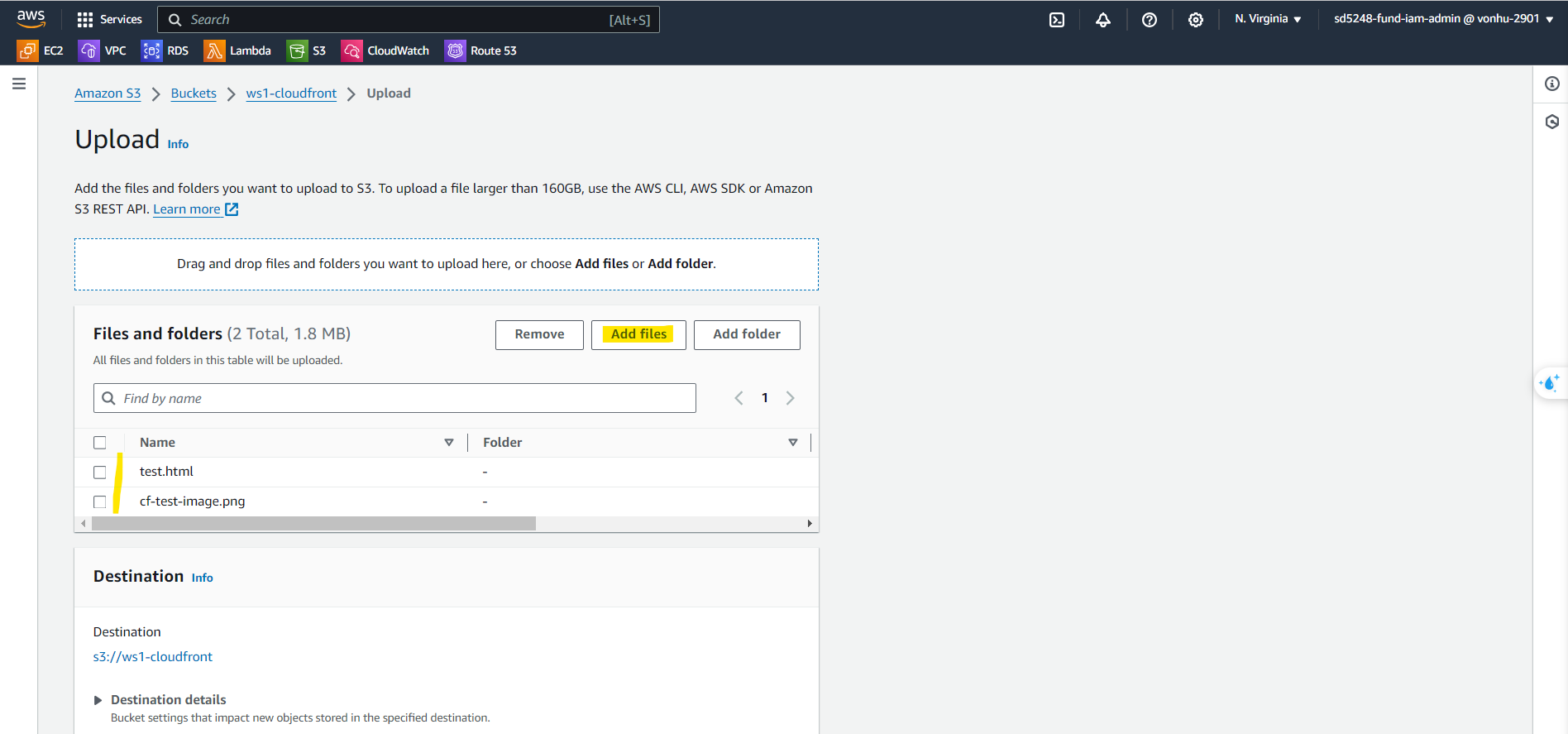
Choose
Upload
button.
At the
Upload
page.
Choose
Add files
button
Select files
Attachments:
test.html
,
cf-test-image.png
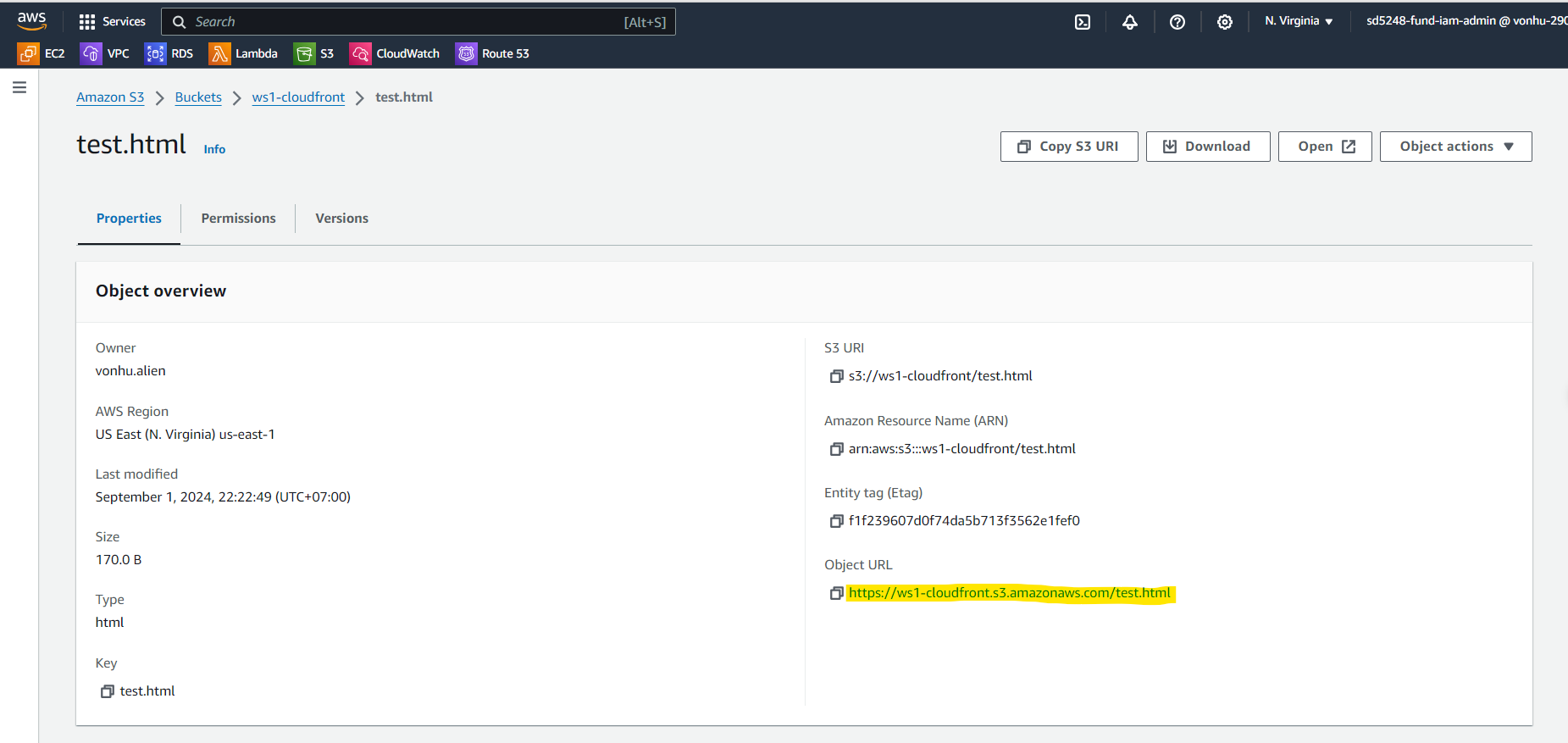
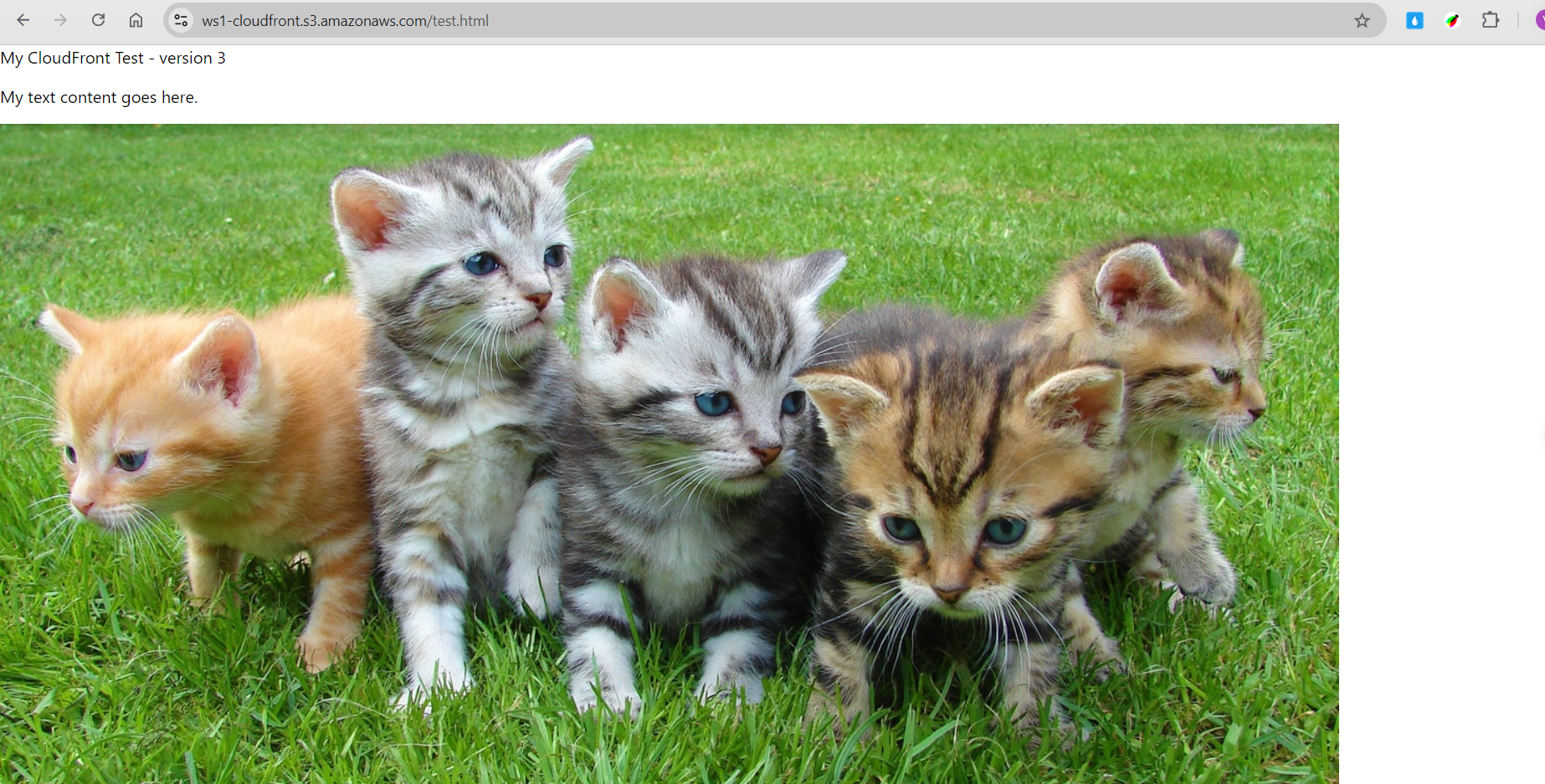
Let’s view the
test.html
page and make sure we can see the page.
Copy url
Open it in browser